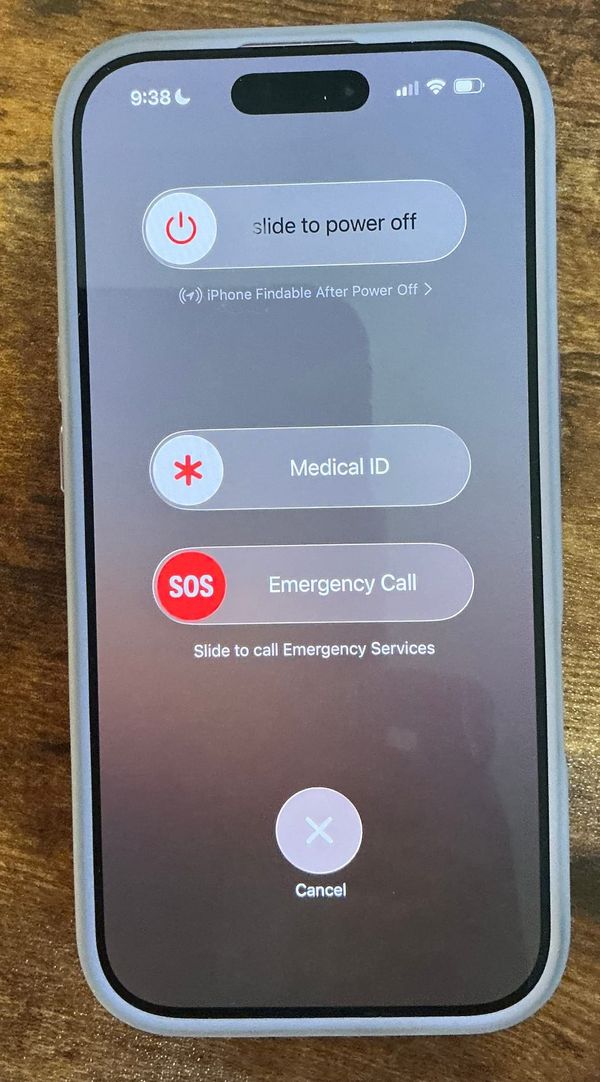
How to Set Up Medical Info and Emergency Contacts on Your Android Phone
A 5 minute setup that tells first responders who you are, what your medical history is, who to call, and where to find your advance directive, all without unlocking your phone.
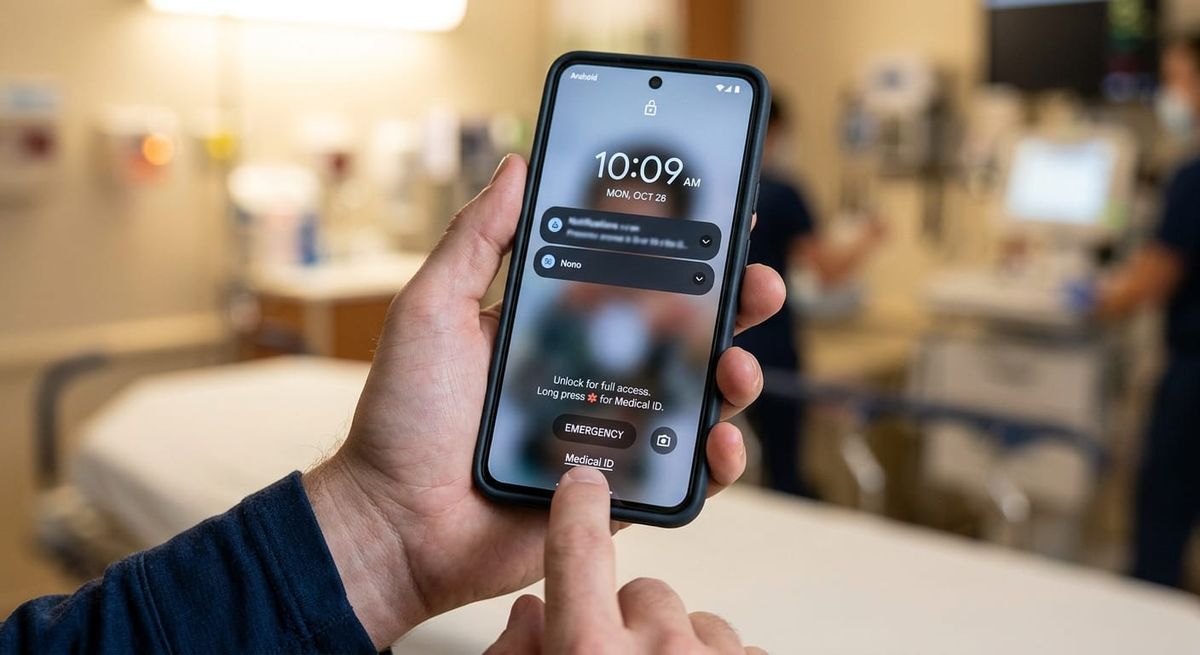
Video walkthrough: Android Medical Info and Emergency Contacts setup.
If you're in an accident or a medical emergency, the first person to reach you probably won't know your name, your allergies, or who to call. Your phone can tell them, if you set it up ahead of time.
Android phones have a built-in place to store medical information and emergency contacts that first responders can see from the lock screen. It takes about five minutes to fill out, and it's one of the simplest things you can do to back up the estate planning documents you've already put in place.
Step 1: Open Settings
There are two ways in.
From the top of the screen: Swipe down from the top right of your screen and tap the gear (cog) icon in the top right corner.
From your apps: Swipe up to open your list of apps. Settings is usually on the first page, with the apps that came pre-installed on your phone.
Step 2: Go to Safety and Emergency
In Settings, scroll down to Safety and emergency. Everything in this guide is stored here. The two options at the top, Medical info and Emergency contacts, are where you'll enter your information.
Menu names vary slightly by phone manufacturer and Android version. If you don't see "Safety and emergency," search Settings for "emergency" or "medical."
Step 3: Fill Out Your Medical Info
Tap Medical info and work down the list, tapping each field and typing in your information.
- Name: So first responders know who you are right away, without digging for your wallet.
- Medical conditions: Any history a first responder should know about.
- Blood type: Critical if you need a transfusion.
- Allergies: Especially medication allergies.
- Current medications: Include dosages if you can.
- Weight, height, date of birth, and address.
- Organ donor: Choose from the drop-down: you can indicate that you are a donor, that you are not, or leave it blank.
Tap Save at the bottom when you're done.
Step 4: Use Medical Notes for Your Estate Plan
The Medical notes field is the most useful part of this screen, and the one most people skip. It gives you open space to add anything a first responder or hospital should know. Consider including:
- Your primary care physician's name and phone number
- Your attorney's name and phone number
- Where your advance directive is stored, or which hospital or health system already has it on file
If you have an Oregon advance directive naming a health care representative, this is how you make sure medical staff know it exists and who to call.
Step 5: Add Your Emergency Contacts
Go back and tap Emergency contacts. Add the people you'd want notified if something happens to you. Common choices:
- Health care representative: The person named in your advance directive to make medical decisions for you.
- Spouse or partner
- Other family members or close friends
You can add as many contacts as you'd like.
Step 6: Turn On "Show on Lock Screen"
Turn on Show on lock screen. Without this, a first responder who picks up your phone can't see your medical info or call your contacts, because they won't be able to unlock it.
Anything you enter here is visible to whoever has your phone, so include what would help in an emergency and leave out anything you'd prefer to keep private.
Keep It Current
Review this information whenever your medications, health, address, or estate plan changes. That includes naming a new health care representative. An outdated contact can be worse than none.
Your advance directive only helps if the people treating you know it exists. A few minutes on your phone helps make sure it does.
Questions about your advance directive or health care representative? Contact Spector Law at 971.346.3833 or support@spector.law.
Rugged plans, built to last.