Goofydog1234! Is Not an Estate Plan (Passwords)
Your estate plan covers the house, the accounts, and the kids. But if no one can get into your phone or email, the plan stalls. Here's how to fix that in an afternoon.
I Almost Got Phished This Morning. Here's Why That's an Estate Planning Problem.
This morning, a notification popped up on my phone. It said my business's Facebook page contained copyrighted material, violated community standards, and would be restricted unless I responded within 24 hours.
I panicked. I have a registered trademark. My business is registered with the Oregon Secretary of State. I started typing a response to prove I'm legitimate before I'd even finished reading.
It was a phishing scam. The message came from an individual account, not from Facebook. I caught it in time, but it got close. I've never fallen for one of these in my life, and this one almost worked because it went straight for my biggest fear as a business owner: losing something I built.
These scams are getting very sophisticated. And the fix has two sides. Protect your accounts from the wrong people, and make sure the right people can get in if something happens to you.
That second part is estate planning. If you're the one holding it all together, it's also business succession planning.
Real phishing images below
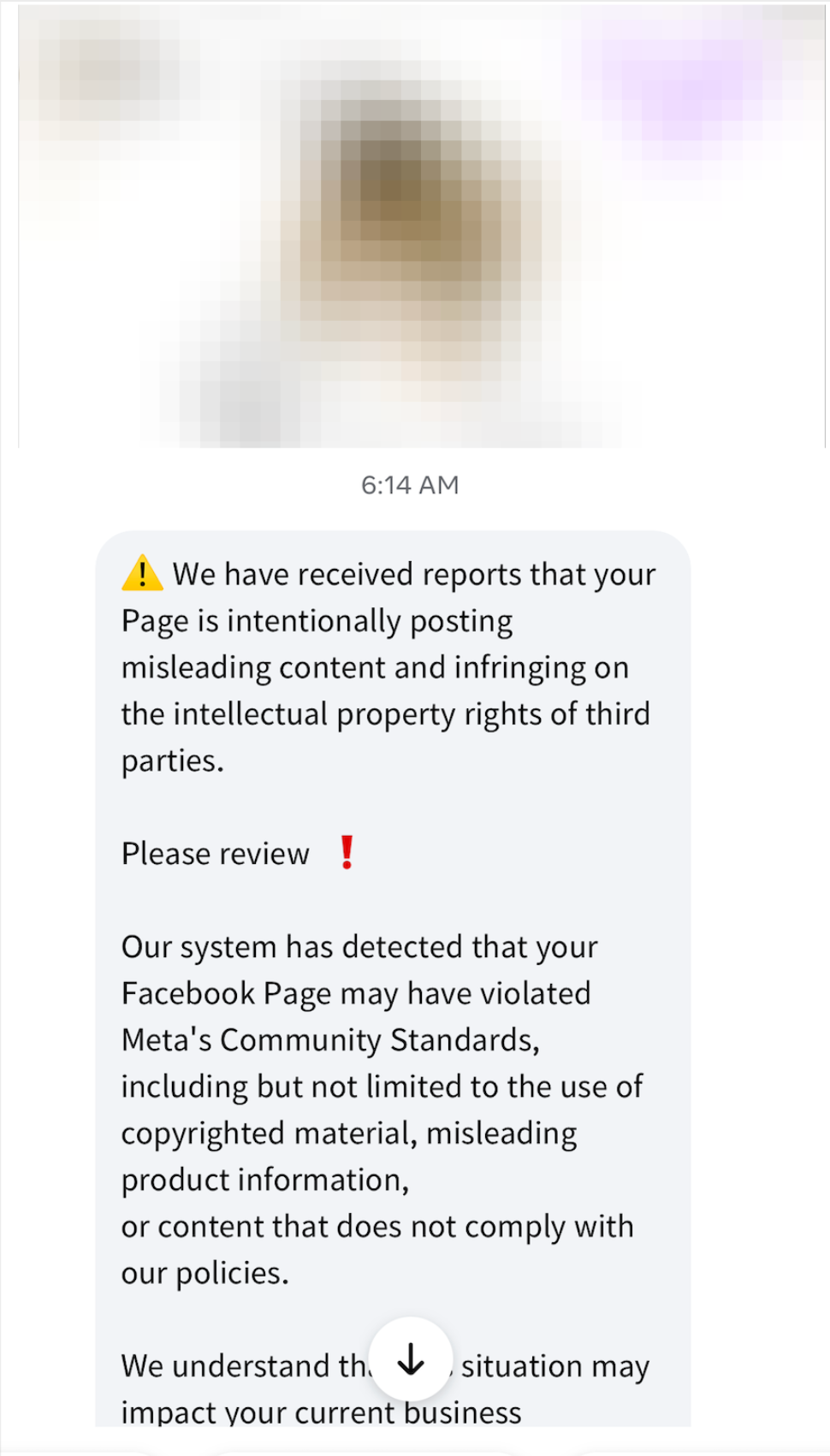
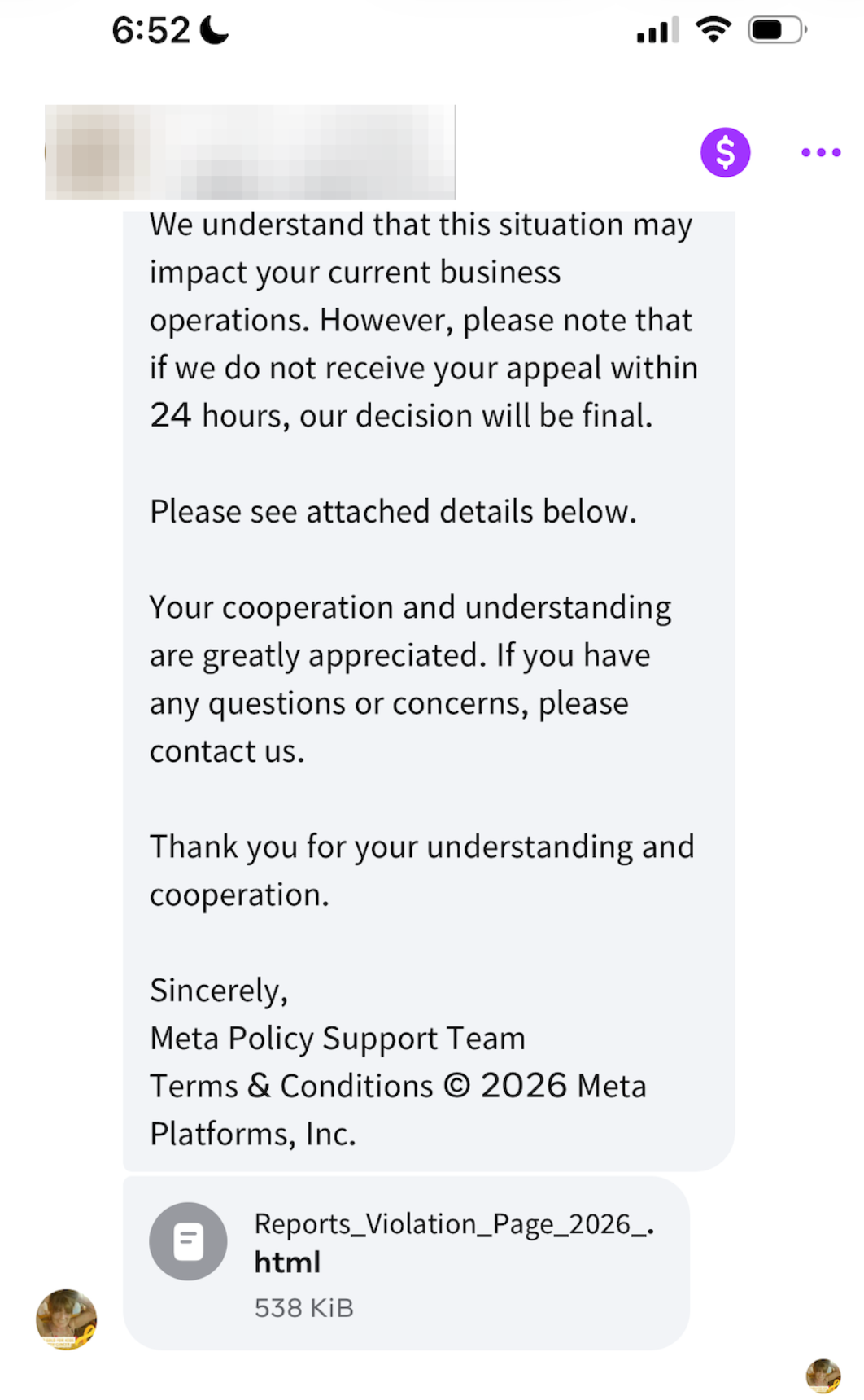
The real phishing message I got. It looked legitimate enough that I almost responded. The fake 'copyright violation' notice. Note the 24-hour deadline: urgency is the scam.
Next - let's talk about keeping your accounts secure and accessible to your trusted loved one (and not accessible to hackers)
Step 1: Turn on two-factor authentication for everything
Two-factor authentication (2FA) means logging in takes your password plus a second step, usually a code sent to your phone or generated by an app. Even if a scammer gets your password, they can't get in without that code.
Turn it on for every platform that allows it. If Netflix offers two-factor, turn it on for Netflix. Once someone gets into one account, they follow the trail of crumbs into the rest: your email, then your bank, then your business pages.
Yes, it's a pain. It's also what saves you on the day you click the wrong link.
Step 2: Stop using Goofydog1234!
Earlier today I talked with a professional who uses the same couple of passwords for every account he has. A lot of people do.
Here's the problem. Say I had clicked that link and handed over a password like Goofydog1234!. Even if I changed it an hour later, a smart scammer would already be trying it on my bank, my LinkedIn, and everything else. One stolen password turns into ten compromised accounts.
A secure password is at least 20 characters, randomly generated, with uppercase and lowercase letters, numbers, and symbols. And it's different for every account. Nobody can memorize that, which is why step 3 matters.
Step 3: Build a password system someone else can use
This is the part most people skip, and it's where the real risk sits.
Picture this. I don't show up to work tomorrow because I'm in the hospital. Inquiries are still coming in on Facebook, Yelp, and Instagram. Payroll is still due. If I'm the only one with the logins, a whole part of my business shuts down, and my clients don't get taken care of.
If you're the single point of failure, your passwords are too. Pick a system and stick to it. Here are three options.
Paper. Write your passwords down, decide which team members get which ones (the Yelp login, for example), and update the list every three months.
A spreadsheet on a USB drive. Password-protect the file, keep the drive somewhere secure like a locked filing cabinet, and tell your office manager where it is and how to open it. Something like: "If I'm ever not around and you need to run payroll, the passwords are on the drive in the black filing cabinet in my office."
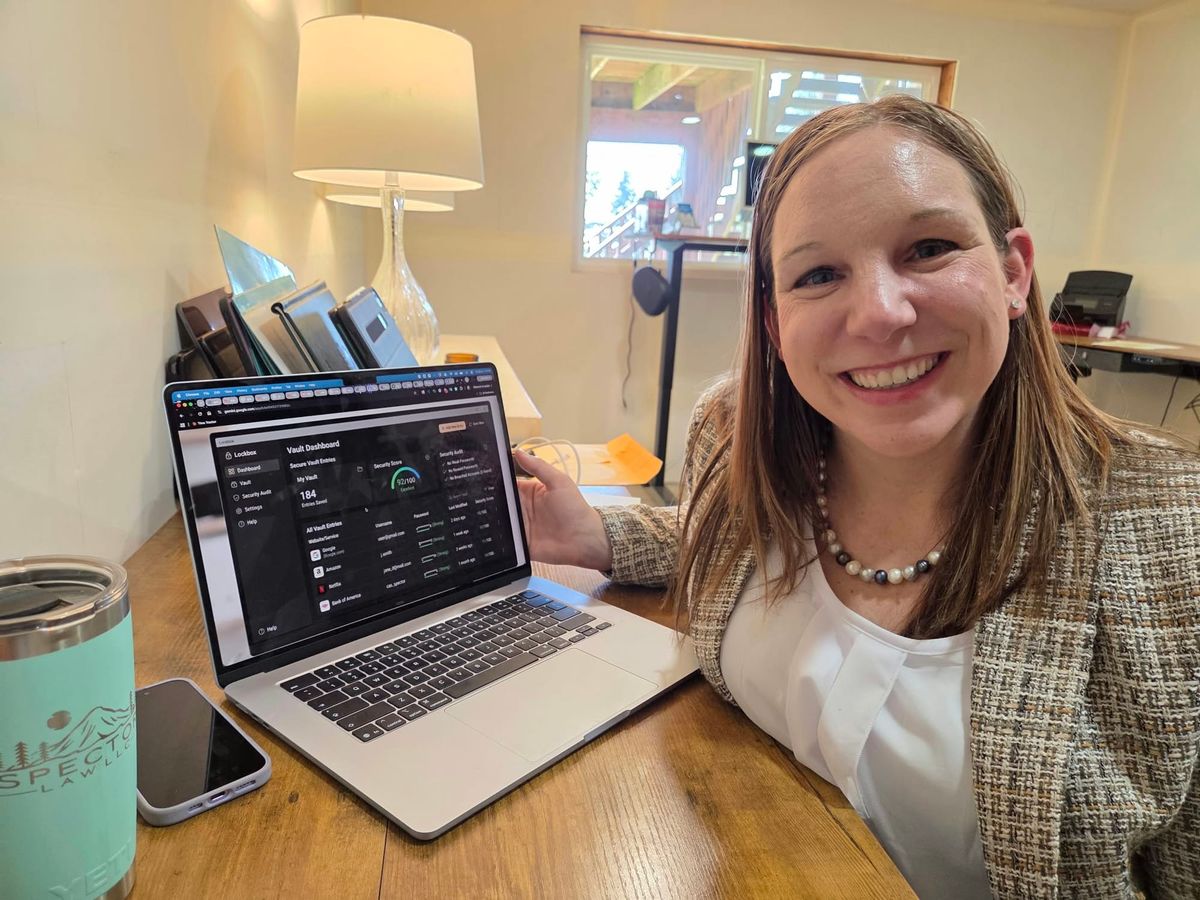
A password manager. This is the easiest option for most people. A good one does two things that matter here:
- Folders with permissions. Customer service sees only the logins it needs. Finance and HR get their own folder. The most sensitive accounts stay in a folder only you and your trusted backup can open.
- Emergency access. You name trusted people in advance. If something happens to you, they can request access, and the business keeps running. That's how mine is set up. My team knows who my backups are.
Worried about putting everything in one place? Add a password key. Let the manager generate a strong password, then add a short code to the end of it, like 3438, that you never save in the password manager. If the vault is ever breached, the stored passwords alone won't work. Just make sure your trusted backup knows the key, or knows where to find it.
One more note: don't put passwords in your will. A will can become a public court record in probate. Keep your password instructions in a separate, secure place and tell your trustee or backup where to find them.
Your checklist
- Turn on two-factor for your email first, then every account that offers it.
- Replace any reused or short password with a unique, randomly generated one.
- Choose your system: paper, a spreadsheet on a secure drive, or a password manager.
- Name your trusted backup and tell them where to look.
- Set up emergency access, and decide who sees what.
You don't know what you don't know
Lately I've been focusing on the logistics around estate planning: the practical steps that decide whether your plan actually works on a hard day. First it was Medical ID on your phone. Now it's passwords. Documents matter, but if no one can get into your accounts, the plan stalls.
Subscribe to the blog and I'll send you my Digital Life Organizer, a simple worksheet for recording where everything is and who should have access.
This isn't a form you fill out at midnight. It's a plan built around your family, with strategy behind every decision and support long after you sign.
Whether you work with me or someone else, promise me one thing: please get your estate planning done in the next 90 days. No one plans to have a heart attack on a Tuesday, and a plan only helps if it's already in place.
Rugged plans, built to last.
Cassie Spector | Spector Law, LLC | The Summit Attorney™
Attorney Licensed in Oregon and Washington
Estate planning, trust administration, and probate in Oregon and Washington
📞 971.346.3833
✉️ support@spector.law
🌐 https://www.spector.law
📅 Talk with my team: https://calendly.com/spector-support/how-can-we-help
💼 LinkedIn - Spector Law: https://www.linkedin.com/company/spector-law
📘 Facebook: https://www.facebook.com/SpectorLawLLC
Free Digital Life Organizer: https://spector.law/spector-law-digital-life-organizer
This video and blog is general information, not legal advice for your situation. Watching or reading these materials does not create an attorney-client relationship.
This article is general information, not legal advice for your situation.